

CometChatMessageComposer renders the message input area and sends messages to the active conversation. It supports text, media, mentions, voice notes, stickers, and AI-powered features.

Where It Fits
CometChatMessageComposer is an input component. Wire it with CometChatMessageHeader and CometChatMessageList to build a complete messaging layout.
- Kotlin (XML Views)
- Jetpack Compose
activity_chat.xml
Quick Start
- Kotlin (XML Views)
- Jetpack Compose
Add to your layout XML:Set a
User or Group:CometChatUIKit.init(), a user logged in, and the UI Kit dependency added.
Actions and Events
Callback Methods
onSendButtonClick
Fires when the send button is tapped. Override to intercept or replace the default message-sending logic.
- Kotlin (XML Views)
- Jetpack Compose
onError
Fires on internal errors (network failure, auth issue, SDK exception).
- Kotlin (XML Views)
- Jetpack Compose
SDK Events
The MessageComposer does not attach SDK listeners directly. Typing indicators are managed internally whendisableTypingEvents is false (default).
Functionality
Multiple Attachments
The composer supports sending several attachments in one go. Tapping a media or file option opens a multi-select picker; the picks are staged in an attachment tray above the input box, upload immediately, and are sent together when the user taps send. How it works:- Multi-select picking — the photo/video picker and the document picker both allow selecting multiple items, capped to the app’s per-message limit. Camera captures and picker audio stage into the same tray.
- Attachment tray — each staged file shows as a tile (thumbnail for media, chip for files/audio) with a live upload progress indicator, a ✕ to cancel or remove, and tap-to-retry on a transfer failure. The tray is only visible while at least one file is staged.
- Upload before send — files upload as soon as they are staged (via the SDK’s upload-first flow); the send button stays disabled until every tile finishes uploading. Text typed in the composer becomes the caption of the batch, with rich text formatting preserved.
- One message per attachment type — a mixed pick is split into separate messages in a fixed order (images → videos → audios → files) that share a
batchIdand render as grouped bubbles in the message list. - Clipboard paste — images, videos, documents, and audio copied to the clipboard can be pasted straight into the composer and stage into the tray.
- Voice notes stay standalone — a mic recording always sends immediately as its own message and is never staged. Audio chosen through the file picker, by contrast, stages as a file attachment.
- Editing a media message edits its caption only; the message’s attachments are preserved.
Limits and Validation
Limits are governed by the app’s server settings (CometChat dashboard) — the composer reads them at runtime through the SDK.setMaxAttachmentCount() can only tighten the limit client-side, never raise it above the server value.
Each tile carries an
AttachmentUploadStatus (UPLOADING, DONE, FAILED, REJECTED, CANCELLED) mapped directly from the SDK’s per-file upload callbacks, so the tray shows the right affordance — cancel while uploading, retry on a FAILED (transient) tile, remove on a REJECTED (non-retryable) tile. Errors surface through the composer ViewModel’s errorEvent, which you can observe to show your own snack bar.
Disabling Multiple Attachments
Set the flag tofalse to restore the legacy behavior — single-item pickers that send immediately with no tray:
- Kotlin (XML Views)
- Jetpack Compose
Styling the Attachment Tray (Compose)
In the Compose UI Kit the tray strip is themed throughCometChatAttachmentTrayStyle:
Custom View Slots
Header View
Custom view above the text input area.
- Kotlin (XML Views)
- Jetpack Compose
Send Button View
Replace the default send button.
- Kotlin (XML Views)
- Jetpack Compose
Auxiliary Button View
Replace the auxiliary button area (stickers, AI).
If you override the auxiliary button with
setAuxiliaryButtonView(), retrieve the default auxiliary buttons via CometChatUIKit.getDataSource().getAuxiliaryOption() and include them in your custom layout to preserve sticker/AI buttons.- Kotlin (XML Views)
- Jetpack Compose
Attachment Options
Replace the default attachment options.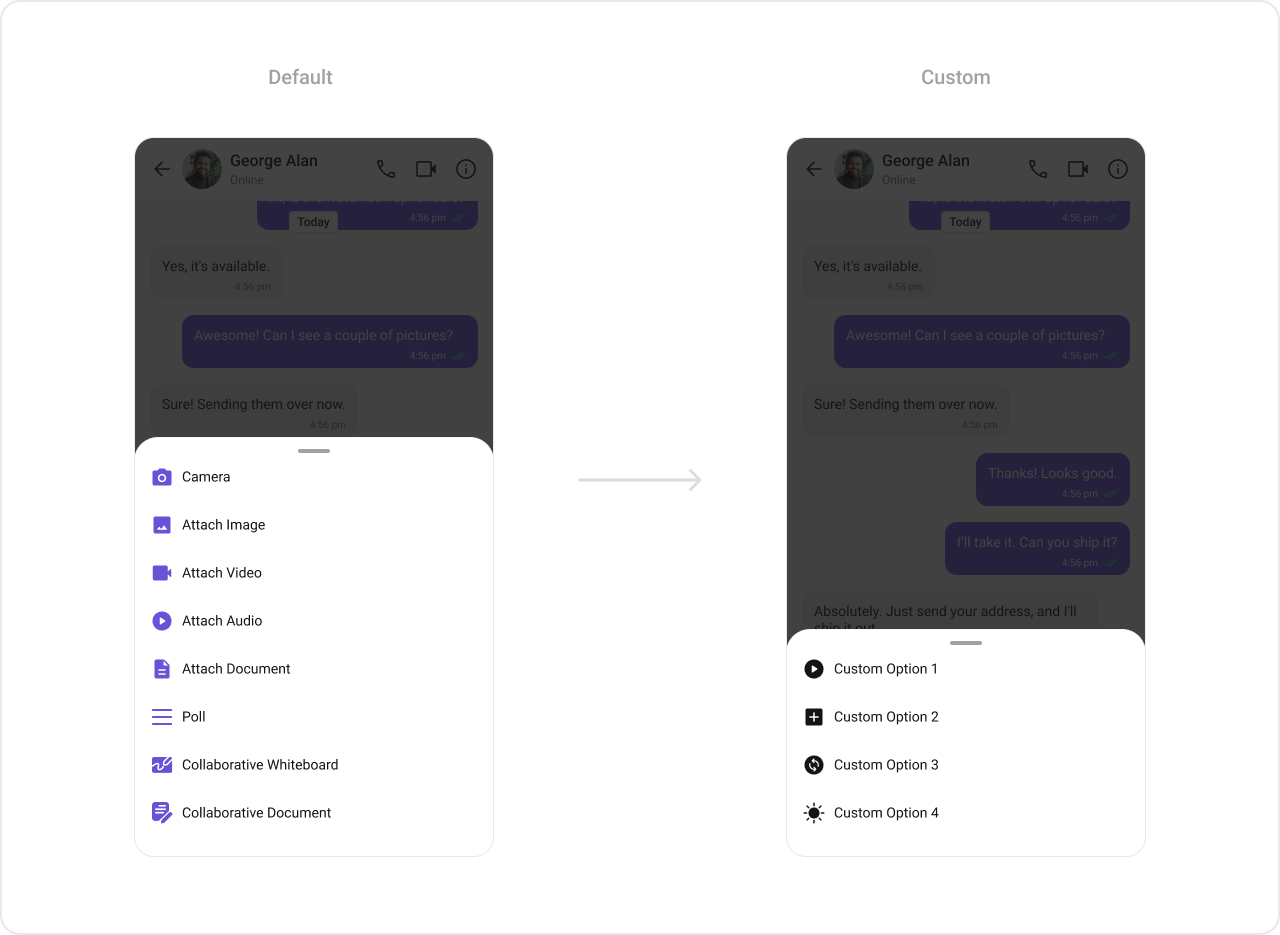
- Kotlin (XML Views)
- Jetpack Compose
Text Formatters (Mentions)
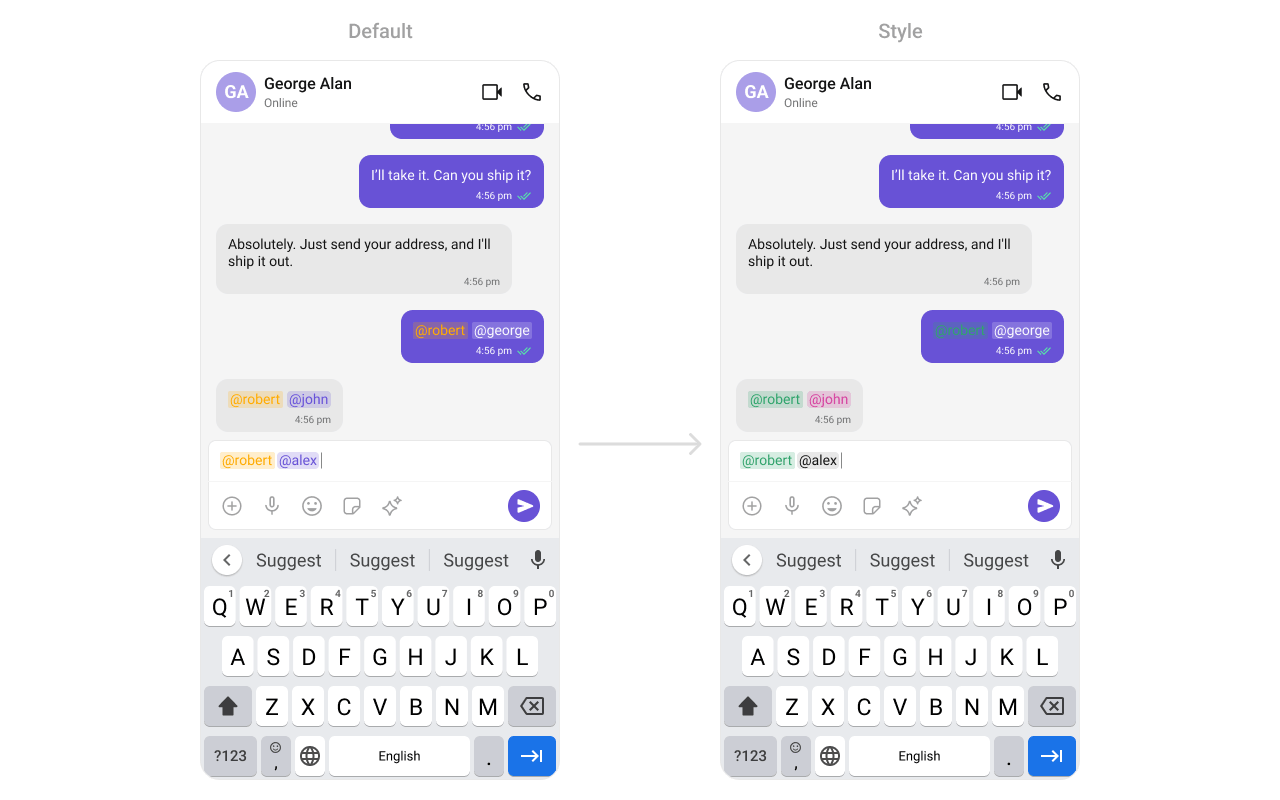
- Kotlin (XML Views)
- Jetpack Compose
Style
- Kotlin (XML Views)
- Jetpack Compose
Define a custom style in
themes.xml:themes.xml

ViewModel
- Kotlin (XML Views)
- Jetpack Compose
Next Steps
Message List
Display messages in a conversation
Message Header
Display user/group info in the toolbar
Message Template
Customize message bubble structure
Component Styling
Detailed styling reference