> ## Documentation Index
> Fetch the complete documentation index at: https://cometchat-22654f5b-feature-android-multimedia-attachments.mintlify.site/llms.txt
> Use this file to discover all available pages before exploring further.
# Message Composer
> Message input area with send, attachment, voice note, sticker, and AI buttons. Supports text, media, mentions, and message editing.
`CometChatMessageComposer` renders the message input area and sends messages to the active conversation. It supports text, media, mentions, voice notes, stickers, and AI-powered features.
 ***
## Where It Fits
`CometChatMessageComposer` is an input component. Wire it with `CometChatMessageHeader` and `CometChatMessageList` to build a complete messaging layout.
```xml activity_chat.xml lines theme={null}
```
```kotlin lines theme={null}
val messageComposer = findViewById(R.id.message_composer)
messageComposer.setUser(user)
```
```kotlin lines theme={null}
CometChatMessageComposer(
user = user
)
```
***
## Quick Start
Add to your layout XML:
```xml lines theme={null}
```
Set a `User` or `Group`:
```kotlin lines theme={null}
override fun onCreate(savedInstanceState: Bundle?) {
super.onCreate(savedInstanceState)
setContentView(R.layout.your_layout)
val composer = findViewById(R.id.composer)
composer.setUser(user)
// or composer.setGroup(group)
}
```
```kotlin lines theme={null}
@Composable
fun ComposerScreen() {
CometChatMessageComposer(
user = user
// or group = group
)
}
```
Prerequisites: CometChat SDK initialized with `CometChatUIKit.init()`, a user logged in, and the UI Kit dependency added.
The MessageComposer manages runtime permissions. To ensure the **ActivityResultLauncher** is properly initialized, create the composer in the **onCreate** state of an activity. If using a fragment, load it in the activity's `onCreate`.
***
## Actions and Events
### Callback Methods
#### `onSendButtonClick`
Fires when the send button is tapped. Override to intercept or replace the default message-sending logic.
```kotlin lines theme={null}
messageComposer.setOnSendButtonClick { context, baseMessage ->
// Custom send logic
}
```
```kotlin lines theme={null}
CometChatMessageComposer(
user = user,
onSendButtonClick = { context, baseMessage ->
// Custom send logic
}
)
```
#### `onError`
Fires on internal errors (network failure, auth issue, SDK exception).
```kotlin lines theme={null}
messageComposer.setOnError { context, exception ->
Log.e("Composer", "Error: ${exception.message}")
}
```
```kotlin lines theme={null}
CometChatMessageComposer(
user = user,
onError = { context, exception ->
Log.e("Composer", "Error: ${exception.message}")
}
)
```
### SDK Events
The MessageComposer does not attach SDK listeners directly. Typing indicators are managed internally when `disableTypingEvents` is `false` (default).
***
## Functionality
| Method (Kotlin XML) | Compose Parameter | Description |
| ------------------------------------ | ---------------------------------- | ----------------------------------------------------------------------------------------------------------------------------------------------------------------------------------------------- |
| `setUser(user)` | `user = user` | Set target user for 1-on-1 conversations |
| `setGroup(group)` | `group = group` | Set target group for group conversations |
| `setOnSendButtonClick { }` | `onSendButtonClick = { }` | Override send button behavior |
| `setParentMessageId(id)` | `parentMessageId = id` | Set parent message ID for threaded replies |
| `setTextFormatters(list)` | `textFormatters = list` | Custom text formatters (mentions, etc.) |
| `setEnableRichTextFormatting(true)` | `enableRichTextFormatting = true` | Enable rich text formatting |
| `setEnableMultipleAttachments(true)` | `enableMultipleAttachments = true` | Multi-select attachment picking with a preview tray (default `true`); `false` reverts to legacy single-attachment, send-immediately behavior. See [Multiple Attachments](#multiple-attachments) |
| `setMaxAttachmentCount(count)` | — | Lower the per-message attachment cap below the server limit (can only tighten it, never raise it) |
***
## Multiple Attachments
The composer supports sending several attachments in one go. Tapping a media or file option opens a multi-select picker; the picks are staged in an **attachment tray** above the input box, upload immediately, and are sent together when the user taps send.
**How it works:**
* **Multi-select picking** — the photo/video picker and the document picker both allow selecting multiple items, capped to the app's per-message limit. Camera captures and picker audio stage into the same tray.
* **Attachment tray** — each staged file shows as a tile (thumbnail for media, chip for files/audio) with a live upload progress indicator, a ✕ to cancel or remove, and tap-to-retry on a transfer failure. The tray is only visible while at least one file is staged.
* **Upload before send** — files upload as soon as they are staged (via the SDK's upload-first flow); the send button stays disabled until every tile finishes uploading. Text typed in the composer becomes the **caption** of the batch, with rich text formatting preserved.
* **One message per attachment type** — a mixed pick is split into separate messages in a fixed order (images → videos → audios → files) that share a `batchId` and render as grouped bubbles in the message list.
* **Clipboard paste** — images, videos, documents, and audio copied to the clipboard can be pasted straight into the composer and stage into the tray.
* **Voice notes stay standalone** — a mic recording always sends immediately as its own message and is never staged. Audio chosen through the file picker, by contrast, stages as a file attachment.
* Editing a media message edits its **caption** only; the message's attachments are preserved.
### Limits and Validation
Limits are governed by the app's server settings (CometChat dashboard) — the composer reads them at runtime through the SDK. `setMaxAttachmentCount()` can only **tighten** the limit client-side, never raise it above the server value.
| Limit | Setting | Behavior on violation |
| ----------------- | -------------------------------- | ---------------------------------------------------------------------------------------------------------------------------------------------------- |
| Files per message | `file.count.max` (default 10) | Picker selection is capped; overflow picks are dropped and a `MAX_ATTACHMENTS_EXCEEDED` error is emitted ("You can attach up to N files at a time.") |
| Per-file size | `file.size.max` (default 100 MB) | The file stages as a **rejected** (non-retryable) error tile; sending is blocked until it is removed |
| File type | Server-side validation | The upload is refused by the server and the file becomes a **rejected** error tile |
Each tile carries an `AttachmentUploadStatus` (`UPLOADING`, `DONE`, `FAILED`, `REJECTED`, `CANCELLED`) mapped directly from the SDK's per-file upload callbacks, so the tray shows the right affordance — cancel while uploading, **retry** on a `FAILED` (transient) tile, **remove** on a `REJECTED` (non-retryable) tile. Errors surface through the composer ViewModel's `errorEvent`, which you can observe to show your own snack bar.
### Disabling Multiple Attachments
Set the flag to `false` to restore the legacy behavior — single-item pickers that send immediately with no tray:
```kotlin lines theme={null}
messageComposer.setEnableMultipleAttachments(false)
```
```kotlin lines theme={null}
CometChatMessageComposer(
user = user,
enableMultipleAttachments = false
)
```
This is composer-side only: received multi-attachment messages still render with the grouped bubbles (see [Message List](/ui-kit/android/v6/message-list)).
### Styling the Attachment Tray (Compose)
In the Compose UI Kit the tray strip is themed through `CometChatAttachmentTrayStyle`:
```kotlin lines theme={null}
CometChatMessageComposer(
user = user,
attachmentTrayStyle = CometChatAttachmentTrayStyle.default().copy(
backgroundColor = Color(0xFFFEEDE1),
tileSpacing = 8.dp
)
)
```
The individual staged-tile visuals and the per-type message bubbles are covered in [Message Bubble Styling](/ui-kit/android/v6/message-bubble-styling).
***
## Custom View Slots
### Header View
Custom view above the text input area.
***
## Where It Fits
`CometChatMessageComposer` is an input component. Wire it with `CometChatMessageHeader` and `CometChatMessageList` to build a complete messaging layout.
```xml activity_chat.xml lines theme={null}
```
```kotlin lines theme={null}
val messageComposer = findViewById(R.id.message_composer)
messageComposer.setUser(user)
```
```kotlin lines theme={null}
CometChatMessageComposer(
user = user
)
```
***
## Quick Start
Add to your layout XML:
```xml lines theme={null}
```
Set a `User` or `Group`:
```kotlin lines theme={null}
override fun onCreate(savedInstanceState: Bundle?) {
super.onCreate(savedInstanceState)
setContentView(R.layout.your_layout)
val composer = findViewById(R.id.composer)
composer.setUser(user)
// or composer.setGroup(group)
}
```
```kotlin lines theme={null}
@Composable
fun ComposerScreen() {
CometChatMessageComposer(
user = user
// or group = group
)
}
```
Prerequisites: CometChat SDK initialized with `CometChatUIKit.init()`, a user logged in, and the UI Kit dependency added.
The MessageComposer manages runtime permissions. To ensure the **ActivityResultLauncher** is properly initialized, create the composer in the **onCreate** state of an activity. If using a fragment, load it in the activity's `onCreate`.
***
## Actions and Events
### Callback Methods
#### `onSendButtonClick`
Fires when the send button is tapped. Override to intercept or replace the default message-sending logic.
```kotlin lines theme={null}
messageComposer.setOnSendButtonClick { context, baseMessage ->
// Custom send logic
}
```
```kotlin lines theme={null}
CometChatMessageComposer(
user = user,
onSendButtonClick = { context, baseMessage ->
// Custom send logic
}
)
```
#### `onError`
Fires on internal errors (network failure, auth issue, SDK exception).
```kotlin lines theme={null}
messageComposer.setOnError { context, exception ->
Log.e("Composer", "Error: ${exception.message}")
}
```
```kotlin lines theme={null}
CometChatMessageComposer(
user = user,
onError = { context, exception ->
Log.e("Composer", "Error: ${exception.message}")
}
)
```
### SDK Events
The MessageComposer does not attach SDK listeners directly. Typing indicators are managed internally when `disableTypingEvents` is `false` (default).
***
## Functionality
| Method (Kotlin XML) | Compose Parameter | Description |
| ------------------------------------ | ---------------------------------- | ----------------------------------------------------------------------------------------------------------------------------------------------------------------------------------------------- |
| `setUser(user)` | `user = user` | Set target user for 1-on-1 conversations |
| `setGroup(group)` | `group = group` | Set target group for group conversations |
| `setOnSendButtonClick { }` | `onSendButtonClick = { }` | Override send button behavior |
| `setParentMessageId(id)` | `parentMessageId = id` | Set parent message ID for threaded replies |
| `setTextFormatters(list)` | `textFormatters = list` | Custom text formatters (mentions, etc.) |
| `setEnableRichTextFormatting(true)` | `enableRichTextFormatting = true` | Enable rich text formatting |
| `setEnableMultipleAttachments(true)` | `enableMultipleAttachments = true` | Multi-select attachment picking with a preview tray (default `true`); `false` reverts to legacy single-attachment, send-immediately behavior. See [Multiple Attachments](#multiple-attachments) |
| `setMaxAttachmentCount(count)` | — | Lower the per-message attachment cap below the server limit (can only tighten it, never raise it) |
***
## Multiple Attachments
The composer supports sending several attachments in one go. Tapping a media or file option opens a multi-select picker; the picks are staged in an **attachment tray** above the input box, upload immediately, and are sent together when the user taps send.
**How it works:**
* **Multi-select picking** — the photo/video picker and the document picker both allow selecting multiple items, capped to the app's per-message limit. Camera captures and picker audio stage into the same tray.
* **Attachment tray** — each staged file shows as a tile (thumbnail for media, chip for files/audio) with a live upload progress indicator, a ✕ to cancel or remove, and tap-to-retry on a transfer failure. The tray is only visible while at least one file is staged.
* **Upload before send** — files upload as soon as they are staged (via the SDK's upload-first flow); the send button stays disabled until every tile finishes uploading. Text typed in the composer becomes the **caption** of the batch, with rich text formatting preserved.
* **One message per attachment type** — a mixed pick is split into separate messages in a fixed order (images → videos → audios → files) that share a `batchId` and render as grouped bubbles in the message list.
* **Clipboard paste** — images, videos, documents, and audio copied to the clipboard can be pasted straight into the composer and stage into the tray.
* **Voice notes stay standalone** — a mic recording always sends immediately as its own message and is never staged. Audio chosen through the file picker, by contrast, stages as a file attachment.
* Editing a media message edits its **caption** only; the message's attachments are preserved.
### Limits and Validation
Limits are governed by the app's server settings (CometChat dashboard) — the composer reads them at runtime through the SDK. `setMaxAttachmentCount()` can only **tighten** the limit client-side, never raise it above the server value.
| Limit | Setting | Behavior on violation |
| ----------------- | -------------------------------- | ---------------------------------------------------------------------------------------------------------------------------------------------------- |
| Files per message | `file.count.max` (default 10) | Picker selection is capped; overflow picks are dropped and a `MAX_ATTACHMENTS_EXCEEDED` error is emitted ("You can attach up to N files at a time.") |
| Per-file size | `file.size.max` (default 100 MB) | The file stages as a **rejected** (non-retryable) error tile; sending is blocked until it is removed |
| File type | Server-side validation | The upload is refused by the server and the file becomes a **rejected** error tile |
Each tile carries an `AttachmentUploadStatus` (`UPLOADING`, `DONE`, `FAILED`, `REJECTED`, `CANCELLED`) mapped directly from the SDK's per-file upload callbacks, so the tray shows the right affordance — cancel while uploading, **retry** on a `FAILED` (transient) tile, **remove** on a `REJECTED` (non-retryable) tile. Errors surface through the composer ViewModel's `errorEvent`, which you can observe to show your own snack bar.
### Disabling Multiple Attachments
Set the flag to `false` to restore the legacy behavior — single-item pickers that send immediately with no tray:
```kotlin lines theme={null}
messageComposer.setEnableMultipleAttachments(false)
```
```kotlin lines theme={null}
CometChatMessageComposer(
user = user,
enableMultipleAttachments = false
)
```
This is composer-side only: received multi-attachment messages still render with the grouped bubbles (see [Message List](/ui-kit/android/v6/message-list)).
### Styling the Attachment Tray (Compose)
In the Compose UI Kit the tray strip is themed through `CometChatAttachmentTrayStyle`:
```kotlin lines theme={null}
CometChatMessageComposer(
user = user,
attachmentTrayStyle = CometChatAttachmentTrayStyle.default().copy(
backgroundColor = Color(0xFFFEEDE1),
tileSpacing = 8.dp
)
)
```
The individual staged-tile visuals and the per-type message bubbles are covered in [Message Bubble Styling](/ui-kit/android/v6/message-bubble-styling).
***
## Custom View Slots
### Header View
Custom view above the text input area.
 ```kotlin lines theme={null}
val view = LayoutInflater.from(context).inflate(R.layout.custom_header_layout, null)
messageComposer.setHeaderView(view)
```
```kotlin lines theme={null}
CometChatMessageComposer(
user = user,
headerView = {
Card(colors = CardDefaults.cardColors(containerColor = Color(0xFFEDEAFA))) {
Row(Modifier.padding(8.dp), verticalAlignment = Alignment.CenterVertically) {
Icon(painterResource(R.drawable.ic_notes), "Notes")
Spacer(Modifier.width(4.dp))
Text("Notes")
}
}
}
)
```
### Send Button View
Replace the default send button.
```kotlin lines theme={null}
val view = LayoutInflater.from(context).inflate(R.layout.custom_header_layout, null)
messageComposer.setHeaderView(view)
```
```kotlin lines theme={null}
CometChatMessageComposer(
user = user,
headerView = {
Card(colors = CardDefaults.cardColors(containerColor = Color(0xFFEDEAFA))) {
Row(Modifier.padding(8.dp), verticalAlignment = Alignment.CenterVertically) {
Icon(painterResource(R.drawable.ic_notes), "Notes")
Spacer(Modifier.width(4.dp))
Text("Notes")
}
}
}
)
```
### Send Button View
Replace the default send button.
 ```kotlin lines theme={null}
val imageView = ImageView(this)
imageView.setImageResource(R.drawable.custom_send_button)
imageView.setOnClickListener {
Toast.makeText(this, "Custom Send Button Clicked!", Toast.LENGTH_SHORT).show()
}
messageComposer.setSendButtonView(imageView)
```
```kotlin lines theme={null}
CometChatMessageComposer(
user = user,
sendButtonView = {
IconButton(onClick = { /* custom send */ }) {
Icon(painterResource(R.drawable.custom_send_button), "Send")
}
}
)
```
### Auxiliary Button View
Replace the auxiliary button area (stickers, AI).
```kotlin lines theme={null}
val imageView = ImageView(this)
imageView.setImageResource(R.drawable.custom_send_button)
imageView.setOnClickListener {
Toast.makeText(this, "Custom Send Button Clicked!", Toast.LENGTH_SHORT).show()
}
messageComposer.setSendButtonView(imageView)
```
```kotlin lines theme={null}
CometChatMessageComposer(
user = user,
sendButtonView = {
IconButton(onClick = { /* custom send */ }) {
Icon(painterResource(R.drawable.custom_send_button), "Send")
}
}
)
```
### Auxiliary Button View
Replace the auxiliary button area (stickers, AI).
 If you override the auxiliary button with `setAuxiliaryButtonView()`, retrieve the default auxiliary buttons via `CometChatUIKit.getDataSource().getAuxiliaryOption()` and include them in your custom layout to preserve sticker/AI buttons.
```kotlin lines theme={null}
val linearLayout = LinearLayout(this)
linearLayout.orientation = LinearLayout.HORIZONTAL
// Preserve default auxiliary buttons
val defaultView = CometChatUIKit.getDataSource().getAuxiliaryOption(
this, user, group,
messageComposer.composerViewModel.getIdMap(),
messageComposer.additionParameter
)
linearLayout.addView(defaultView)
// Add custom button
val customButton = ImageView(this)
customButton.setImageResource(R.drawable.save_icon)
linearLayout.addView(customButton)
messageComposer.setAuxiliaryButtonView(linearLayout)
```
```kotlin lines theme={null}
CometChatMessageComposer(
user = user,
auxiliaryButtonView = {
Row {
// Custom button alongside defaults
IconButton(onClick = { /* action */ }) {
Icon(painterResource(R.drawable.save_icon), "Save")
}
}
}
)
```
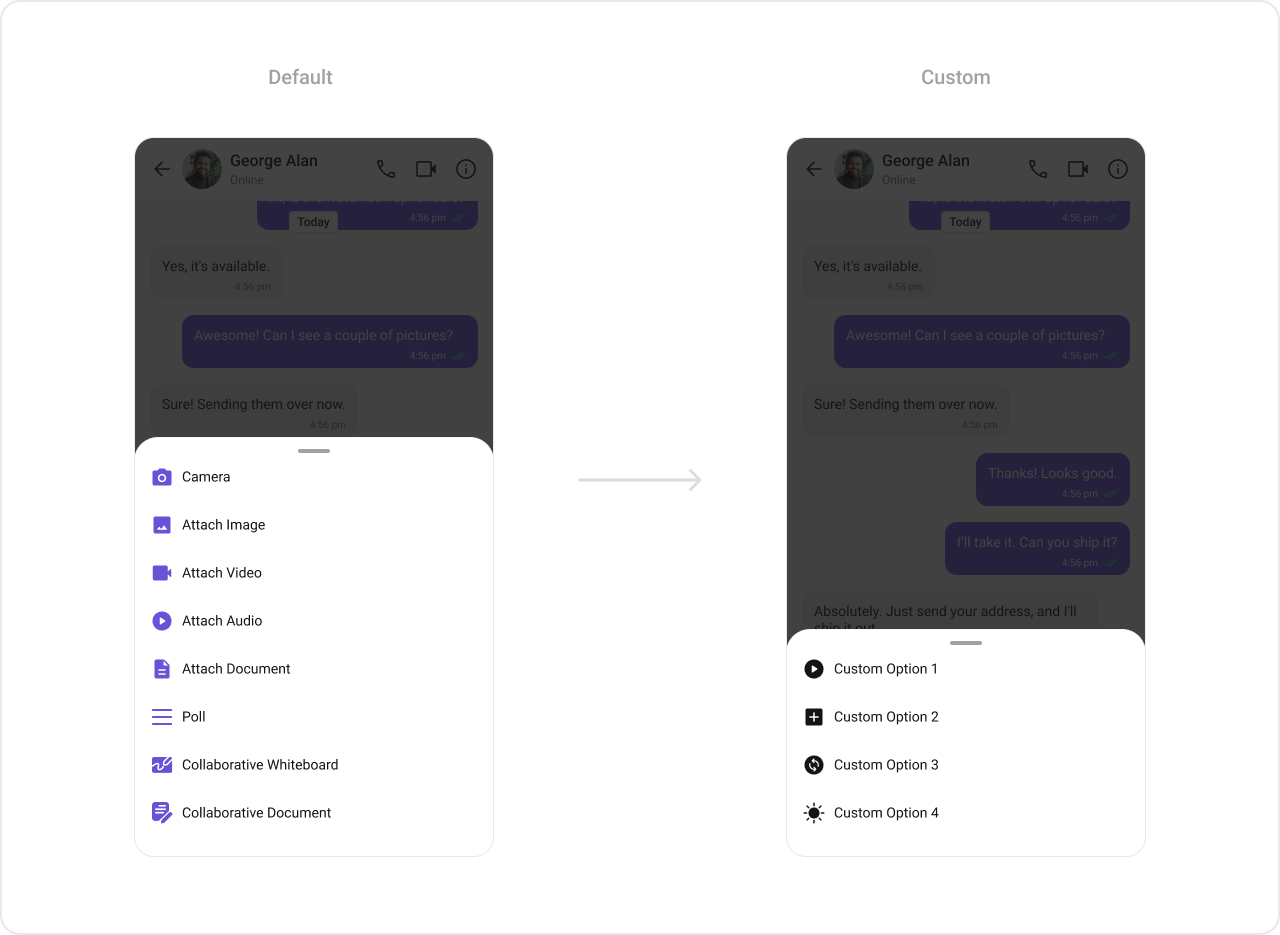
### Attachment Options
Replace the default attachment options.
If you override the auxiliary button with `setAuxiliaryButtonView()`, retrieve the default auxiliary buttons via `CometChatUIKit.getDataSource().getAuxiliaryOption()` and include them in your custom layout to preserve sticker/AI buttons.
```kotlin lines theme={null}
val linearLayout = LinearLayout(this)
linearLayout.orientation = LinearLayout.HORIZONTAL
// Preserve default auxiliary buttons
val defaultView = CometChatUIKit.getDataSource().getAuxiliaryOption(
this, user, group,
messageComposer.composerViewModel.getIdMap(),
messageComposer.additionParameter
)
linearLayout.addView(defaultView)
// Add custom button
val customButton = ImageView(this)
customButton.setImageResource(R.drawable.save_icon)
linearLayout.addView(customButton)
messageComposer.setAuxiliaryButtonView(linearLayout)
```
```kotlin lines theme={null}
CometChatMessageComposer(
user = user,
auxiliaryButtonView = {
Row {
// Custom button alongside defaults
IconButton(onClick = { /* action */ }) {
Icon(painterResource(R.drawable.save_icon), "Save")
}
}
}
)
```
### Attachment Options
Replace the default attachment options.
 ```kotlin lines theme={null}
val actionList = ArrayList()
val action1 = CometChatMessageComposerAction()
action1.title = "Custom Option 1"
action1.icon = R.drawable.ic_cp_1
action1.onClick = {
Toast.makeText(context, "Custom Option 1", Toast.LENGTH_SHORT).show()
}
actionList.add(action1)
messageComposer.setAttachmentOptions(actionList)
```
```kotlin lines theme={null}
CometChatMessageComposer(
user = user,
attachmentOptions = listOf(
CometChatMessageComposerAction(
title = "Custom Option 1",
icon = R.drawable.ic_cp_1,
onClick = { /* handle */ }
)
)
)
```
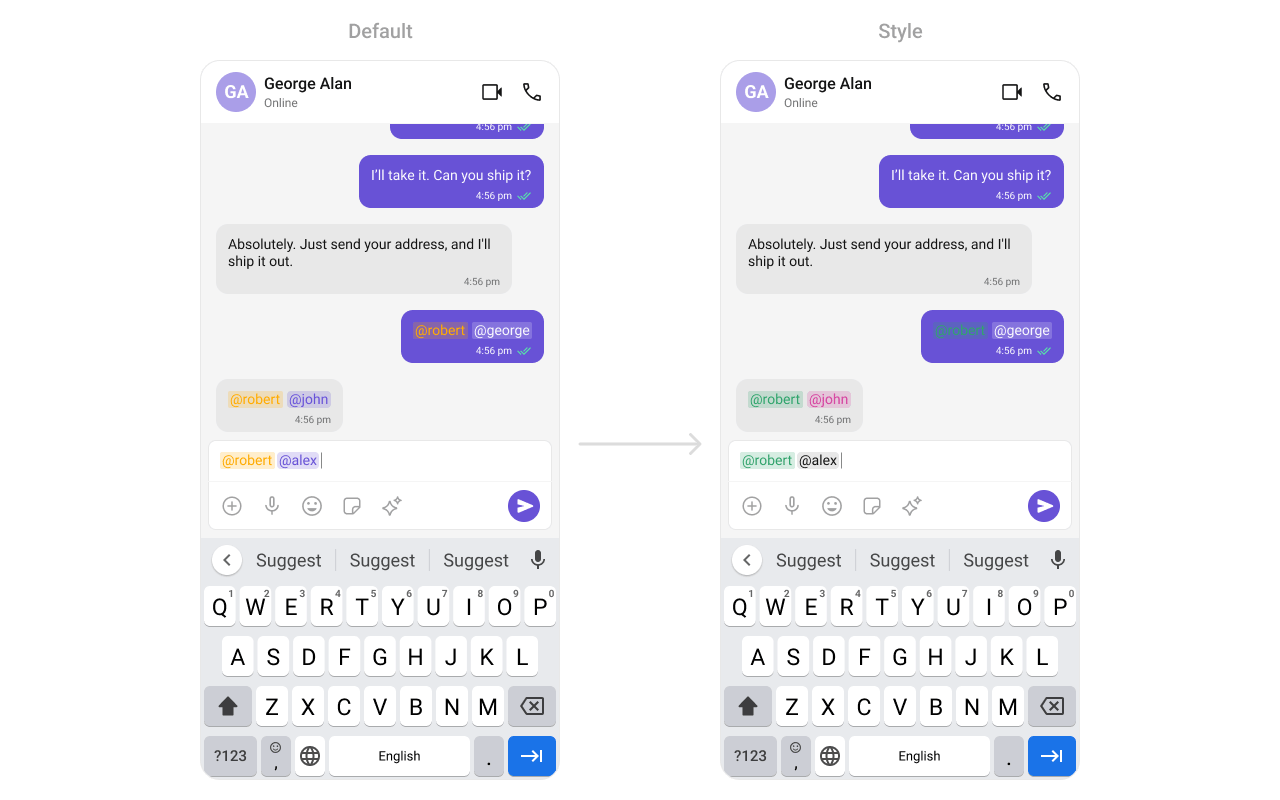
### Text Formatters (Mentions)
```kotlin lines theme={null}
val actionList = ArrayList()
val action1 = CometChatMessageComposerAction()
action1.title = "Custom Option 1"
action1.icon = R.drawable.ic_cp_1
action1.onClick = {
Toast.makeText(context, "Custom Option 1", Toast.LENGTH_SHORT).show()
}
actionList.add(action1)
messageComposer.setAttachmentOptions(actionList)
```
```kotlin lines theme={null}
CometChatMessageComposer(
user = user,
attachmentOptions = listOf(
CometChatMessageComposerAction(
title = "Custom Option 1",
icon = R.drawable.ic_cp_1,
onClick = { /* handle */ }
)
)
)
```
### Text Formatters (Mentions)
 ```kotlin lines theme={null}
val mentionFormatter = CometChatMentionsFormatter(context)
mentionFormatter.setMessageComposerMentionTextStyle(context, R.style.CustomMentionsStyle)
val textFormatters: MutableList = ArrayList()
textFormatters.add(mentionFormatter)
messageComposer.setTextFormatters(textFormatters)
```
```kotlin lines theme={null}
val mentionFormatter = CometChatMentionsFormatter(context)
CometChatMessageComposer(
user = user,
textFormatters = listOf(mentionFormatter)
)
```
***
## Style
Define a custom style in `themes.xml`:
```xml themes.xml lines theme={null}
```
```kotlin lines theme={null}
CometChatMessageComposer(
user = user,
style = CometChatMessageComposerStyle.default().copy(
backgroundColor = Color(0xFFFEEDE1),
inputBackgroundColor = Color.White
)
)
```
```kotlin lines theme={null}
val mentionFormatter = CometChatMentionsFormatter(context)
mentionFormatter.setMessageComposerMentionTextStyle(context, R.style.CustomMentionsStyle)
val textFormatters: MutableList = ArrayList()
textFormatters.add(mentionFormatter)
messageComposer.setTextFormatters(textFormatters)
```
```kotlin lines theme={null}
val mentionFormatter = CometChatMentionsFormatter(context)
CometChatMessageComposer(
user = user,
textFormatters = listOf(mentionFormatter)
)
```
***
## Style
Define a custom style in `themes.xml`:
```xml themes.xml lines theme={null}
```
```kotlin lines theme={null}
CometChatMessageComposer(
user = user,
style = CometChatMessageComposerStyle.default().copy(
backgroundColor = Color(0xFFFEEDE1),
inputBackgroundColor = Color.White
)
)
```
 See [Component Styling](/ui-kit/android/v6/component-styling) for the full reference.
***
## ViewModel
```kotlin lines theme={null}
val viewModel = ViewModelProvider(this)
.get(CometChatMessageComposerViewModel::class.java)
```
```kotlin lines theme={null}
messageComposer.setViewModel(viewModel)
```
```kotlin lines theme={null}
CometChatMessageComposer(
user = user,
messageComposerViewModel = viewModel
)
```
See [ViewModel & Data](/ui-kit/android/v6/customization-viewmodel-data) for state observation and custom repositories.
***
## Next Steps
Display messages in a conversation
Display user/group info in the toolbar
Customize message bubble structure
Detailed styling reference
See [Component Styling](/ui-kit/android/v6/component-styling) for the full reference.
***
## ViewModel
```kotlin lines theme={null}
val viewModel = ViewModelProvider(this)
.get(CometChatMessageComposerViewModel::class.java)
```
```kotlin lines theme={null}
messageComposer.setViewModel(viewModel)
```
```kotlin lines theme={null}
CometChatMessageComposer(
user = user,
messageComposerViewModel = viewModel
)
```
See [ViewModel & Data](/ui-kit/android/v6/customization-viewmodel-data) for state observation and custom repositories.
***
## Next Steps
Display messages in a conversation
Display user/group info in the toolbar
Customize message bubble structure
Detailed styling reference